
During the development of our Service Portal, we decided that on the homepage we wanted the search box to group items together by type, so catalog items/record producers were shown in one group, and knowledge base articles in another. We found a widget that someone had shared in the ServiceNow community that did this, but it also hadn’t been updated in a while to support multiple search sources that became available at some point, and we also wanted to adjust what was shown at the bottom of the search results (as our portal homepage is available to unauthenticated users, we wanted to prompt people to login to see all results).
Here’s what it looks like:
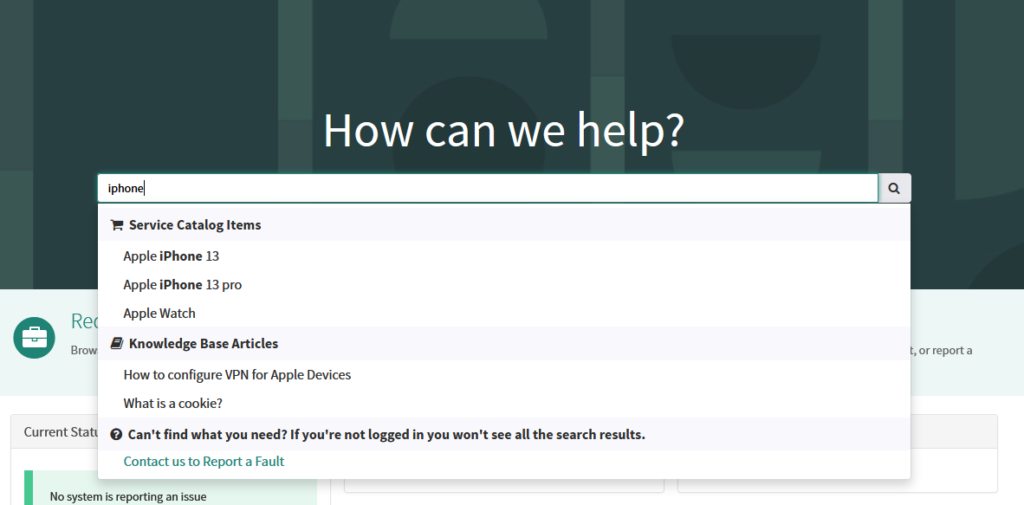
You’ll find a link to download the widget at the bottom of this page, but let’s go over how it all works.
HTML & CSS
The HTML and CSS of our custom search widget are designed to create a responsive, user-friendly interface that seamlessly integrates into the ServiceNow Service Portal. The HTML structure is centered around a flexible <div> container with classes for responsiveness, ensuring that the widget adapts well to different screen sizes. The search bar itself is an input element with typeahead functionality, powered by AngularJS, that dynamically suggests results as the user types. The results are displayed in a dropdown menu, with clear visual groupings based on the type of content—such as Knowledge Base Articles or Service Catalog Items. The accompanying CSS ensures a polished look, with styles for the dropdown menu, including padding, font sizes, and icons for visual distinction. Each group header is styled with a soft background color and bold font to make the separation between content types clear. The overall design is both minimalistic and functional, ensuring that users can easily interact with the widget while maintaining a clean and professional appearance.
Server Script
The script first queries knowledge base articles using the getKnowledge() function. This function utilizes a Many-to-Many (M2M) relationship table, m2m_sp_portal_knowledge_base, to fetch only the knowledge bases associated with the current portal, ensuring that the results are contextually relevant. The M2M query retrieves knowledge base IDs, which are then used to filter and query the kb_knowledge table for articles that match the user’s search input.
	function getKnowledge() {

		var kbs = new global.GlideQuery('m2m_sp_portal_knowledge_base')
			.where('sp_portal', $sp.getPortalRecord().getUniqueValue()).orderBy('order')
			.select('kb_knowledge_base').toArray(100)
			.map(function (elm) { return elm.kb_knowledge_base; });

		var kb = new GlideRecord('kb_knowledge');
		kb.addQuery('workflow_state', 'published');
		kb.addQuery('valid_to', '>=', (new GlideDate()).getLocalDate().getValue());
		kb.addQuery(textQuery, data.q);

		if (kbs != null && kbs.length > 0) {
			gqkb = kb.addQuery('kb_knowledge_base', 'CONTAINS', kbs[0]);
			kbs.slice(1).forEach(function (sys_id) {
				gqkb.addOrCondition('kb_knowledge_base', 'CONTAINS', sys_id);
			});
		}
		kb.query();
		var kbCount = 0;
		while (kb.next() && kbCount < data.limit) {
			if (!$sp.canReadRecord(kb))
				continue;

			var article = {};
			article.type = "kb";
			article.grpname = "Knowledge Base Articles";
			$sp.getRecordDisplayValues(article, kb, 'sys_id,number,short_description,published,text');
			if (!article.text)
				article.text = "";
			article.text = $sp.stripHTML(article.text);
			article.text = article.text.substring(0, 200);
			article.score = parseInt(kb.ir_query_score.getDisplayValue());
			article.label = article.short_description;
			data.results.push(article);
			kbCount++;
		}
	}
Similarly, the getCatalogItems() function retrieves Service Catalog Items. It also leverages an M2M relationship through the m2m_sp_portal_catalog table, allowing the script to pull catalog items tied specifically to the portal. The function includes several conditions to filter active, visible, and standalone catalog items, ensuring that only valid and accessible items are displayed. Additionally, the script accounts for different catalog item types, such as guides and content items, grouping them accordingly in the results.
Client Controller
The heart of the controller is the getResults function, which retrieves search results from the server-side script based on the user’s query. The results are processed and ordered by relevance using AngularJS filters. Additionally, the script introduces “help items,” which are custom entries that provide useful links or information, such as reporting a fault. These help items are appended to the search results if applicable.
			var helpItems = [{ "name": "<span class='typeahead-help-group-contents'><a href='/itportal?id=uob_report_a_fault_p1'>Contact us to Report a Fault</a></span>" }];

			if (helpItems.length > 0) {
				for (var o in helpItems) {
					var item = {};
					item.type = "";
					item.grpname = "Can't find what you need? If you're not logged in you won't see all the search results.";
					item.label = helpItems[o].name;
					item.score = 33;
					a.push(item);
				}
			}
A key feature of the getResults function is the grouping of search results by their type (e.g., Knowledge Base Articles, Service Catalog Items). The script uses the groupBy and map functions to ensure that each group is distinct and that the first item in each group is clearly marked, improving readability and user experience.
Widget Options
You can configure a heading and a sub-heading to be shown above the search box, along with some other standard widget options.
Download
Here’s an XML file containing the widget, which you can import into your sp_widget table.
Conclusion
This custom search widget has significantly improved the search experience in our ServiceNow Service Portal by providing a unified, intuitive interface that consolidates search results from multiple sources. By grouping results and enhancing them with visual cues, users can now find what they need more quickly and efficiently.