Originally, we handled these messages by creating a dedicated incoming-email task for the Service Desk to review. That made sure delivery failures were visible, but it also introduced another task for someone to interpret and manually relate back to the affected record.
We wanted to automate as much of that process as possible. If a bounced notification already contains enough information to identify the Incident it came from, there is little value in creating a separate triage task. The useful outcome is to put the delivery failure straight onto the Incident where the team is already working.
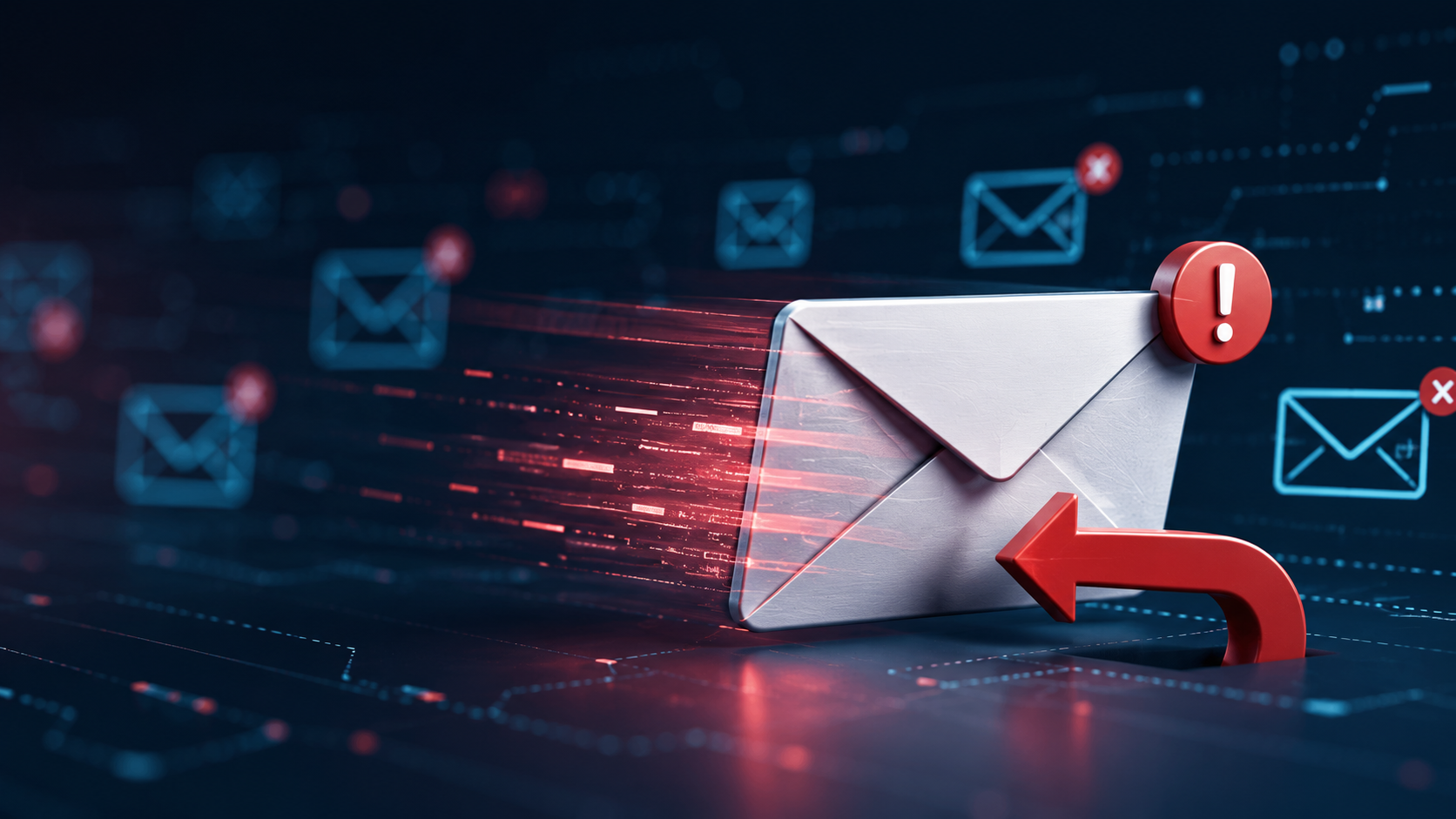
If you have ever looked through sys_email and found a pile of Undelivered Mail Returned to Sender messages, you will know the problem.
ServiceNow sends a notification, the recipient address is invalid, and a delivery-status report comes back from the mail server. By default, it is easy for that information to end up as another generic email task, or worse, to be ignored entirely.
But the important part is this: the bounce is usually about an Incident that already exists. Creating a separate task means the useful information is detached from the record where the team is already working.
This post covers a pattern for updating the original Incident’s work notes instead.
What the mail server sends back
A typical bounce is an inbound sys_email record with a content type similar to this:
multipart/report; report-type=delivery-status
The bounce body usually contains the failed recipient and the SMTP response:
<someone@example.com>: host mail.example.com said:
550 5.1.1 User Unknown
The really useful part is normally attached as message.eml with the MIME type message/rfc822. That attachment is the original outbound ServiceNow notification.
If your Incident notification template includes the normal portal link, the embedded email contains something like this:
https://your-instance.service-now.com/sp?id=ticket&table=incident&sys_id=...
That gives us a reliable way to return to the original Incident.
The desired outcome
When a delivery-status report arrives, the business rule should:
- Read the attached original
.emlmessage. - Find a portal link that explicitly targets
table=incident. - Extract the Incident sys_id from that link.
- Add the bounce diagnostic to the Incident work notes.
- Link the bounced
sys_emailrecord to the Incident. - Stop processing so a separate fallback task is not created.
If the Incident cannot be identified, the existing fallback process can still create an email task for manual investigation. That means you improve the happy path without losing the exceptions.
Reading the embedded email
One small gotcha: GlideSysAttachment.getContent() did not return usable content for the RFC822 attachment in my case. Reading the attachment stream with GlideTextReader was the reliable approach.
var getAttachmentContent = function(attachment) {
    var attachmentApi = new GlideSysAttachment();
    var reader = new GlideTextReader(
        attachmentApi.getContentStream(attachment.getUniqueValue())
    );
    var content = '';
    var line;

    while ((line = reader.readLine()) !== null) {
        content += line + '\n';
    }

    return content;
};
From there, query the attachments belonging to the bounce email and only inspect likely embedded-email attachments:
var attachment = new GlideRecord('sys_attachment');
attachment.addQuery('table_name', 'sys_email');
attachment.addQuery('table_sys_id', current.getUniqueValue());

var attachmentType = attachment.addQuery('file_name', 'ENDSWITH', '.eml');
attachmentType.addOrCondition('content_type', 'message/rfc822');

attachment.query();
Extracting the Incident safely
It would be tempting to search the entire bounce body for any 32-character sys_id. Do not do that.
Email content can contain quoted messages, unrelated links and arbitrary text. Instead, look specifically for an HTML link that declares table=incident, then extract the sys_id parameter from that link.
var extractIncidentSysId = function(content) {
var links = /href=["']([^"']+)["']/gi;
var link;
while ((link = links.exec(content)) !== null) {
var url = link[1];
if (/(?:[?&]|&amp;)table=incident(?:[&]|&amp;|$)/i.test(url)) {
var sysId = /(?:[?&]|&amp;)sys_id=([0-9a-f]{32})(?:[&]|&amp;|$)/i.exec(url);
if (sysId) {
return sysId[1];
}
}
}
return '';
};
This accepts both literal ampersands and HTML-encoded & query-string separators.
Updating the Incident
Once you have a validated Incident sys_id, the update itself is straightforward:
var incident = new GlideRecord('incident');

if (incident.get(incidentSysId)) {
    incident.work_notes =
        'Email delivery failure notification received:\n\n' +
        current.getValue('body_text');

    incident.update();

    current.setValue('target_table', 'incident');
    current.setValue('instance', incidentSysId);
    current.update();

    return;
}
The return matters. It prevents the rest of the business rule from creating a separate fallback task once the bounce has been successfully correlated with an Incident.
Do not create duplicate work notes
Updating the inbound sys_email record can cause the business rule to be evaluated again, depending on its configuration. Add an idempotency check before updating the Incident:
if (current.getValue('target_table') == 'incident' &&
    current.getValue('instance') == incidentSysId) {
    return;
}
That ensures the same bounce does not create multiple work notes or accidentally fall through into the generic task creation logic.
Keep the fallback
This is not a replacement for all incoming-email handling. It only works where the original notification contains an Incident portal link and the referenced Incident still exists.
For everything else, keep the existing fallback route. That includes:
- Bounces from notifications that are not related to Incidents.
- Messages where the original email attachment is absent or unreadable.
- Messages without a valid Incident link.
- References to records that no longer exist.
Those messages can still create a triage task for the Service Desk. The result is a much cleaner queue: known Incident delivery failures are recorded where they belong, while genuinely uncorrelated messages remain visible for investigation.
Final thought
Email bounces are often treated as background noise, but a 550 5.1.1 User Unknown response can explain exactly why an analyst is waiting for a reply that will never arrive.
Putting that diagnostic directly on the Incident makes the failure visible to the people already working the record, preserves the original email trail, and avoids creating an unnecessary extra task. Small automation, but a meaningful improvement to the day-to-day support experience.