In a previous post, we discussed how to dynamically update links in Knowledge Base (KB) articles to ensure users don’t face login prompts when switching between different instance URLs. The challenge was to make sure users are seamlessly redirected within the same domain, even if they’re interacting with multiple vanity URLs. Today, we’ll be extending that solution to Virtual Agent (VA) conversations, which face the same issue—sending a link that causes the user to log in again, interrupting their experience.
Much like the approach used in our previous post, the goal is to dynamically adjust URLs in Virtual Agent interactions based on the user’s current context, ensuring that they always receive the correct link that leads them back to the right instance without requiring an additional login. This post outlines how we’ve adapted our solution for the Virtual Agent and provides a practical example.
Extending the Solution to Virtual Agent Conversations
The Virtual Agent provides a powerful, conversational interface for users to interact with ServiceNow. But as with any system that handles external links, ensuring a smooth user experience means avoiding unnecessary disruptions. For example, when presenting a user with the details of an incident or catalog item, it’s critical that the link sent in the Virtual Agent response points to the correct URL, based on the domain the user is currently interacting with.
In the case of our implementation, we needed a solution similar to the one used for KB articles. We wanted to avoid sending users a URL that would prompt them to log in again, potentially leading to frustration or confusion.
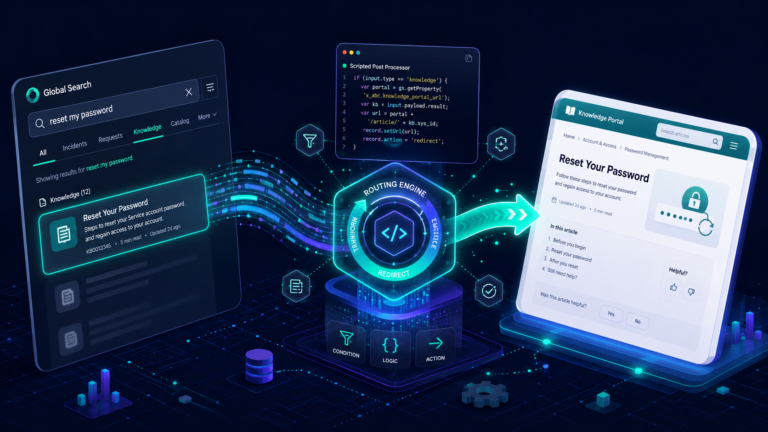
To address this, we created a Script Include called UoBVAUtils. This utility contains a function called getUoBUrl() that determines the correct base URL depending on the user’s current domain context. We then use this URL to generate links for different types of records, such as incidents and catalog items, ensuring that users always remain within their current instance. Here’s a quick look at the key part of the solution:
(function execute() {
    // Initialize UoBVAUtils and get the correct instance URL
    var utils = new UoBVAUtils();
    vaVars.uob_url = utils.getUoBUrl(vaContext);

    // OOTB code for generating the card with comments, edited to use the uob_url
    var tableName = vaVars.table_name;
    var recordId = vaVars.sys_id;
    var link = vaVars.uob_url + vaVars.portalName + "?id=ticket&table=" + tableName + "&sys_id=" + recordId;

    var title = '';
    var subtitle = '';
    var fields = [];

    // Fetch the record from the table (e.g., incident or request)
    var gr = new GlideRecord(tableName);
    gr.addQuery('sys_id', recordId);
    gr.query();
    title = gr.getClassDisplayValue();
    if (gr.next()) {
        subtitle = gr.number.toString();
        // Additional fields such as short description, state, assigned user, etc.
    }

    // Generate the card data with the dynamic link
    var card_data = JSON.stringify({
        "title": title,
        "subtitle": subtitle,
        "fields": fields,
        "url": link
    });

    return vaSystem.renderCard("Card", card_data);
})()
In this example, the UoBVAUtils Script Include is used to determine the correct URL for the instance, which is then used to generate a link for a specific record, such as an incident or request item. This ensures that users are always redirected to the appropriate page without any login prompts
Script Include Example:
var UoBVAUtils = Class.create();
UoBVAUtils.prototype = {
    initialize: function () { },

    // This function determines the instance URL based on the user's current context
    getUoBUrl: function (vaContext) {
        var url = gs.getProperty('glide.servlet.uri');
        if (vaContext.url) {
            var regex = /^(https?:\/\/[^\/]+)\//i;
            var match = vaContext.url.match(regex);
            if (match && match[1]) {
                url = match[1];
            }
        }

        if (!url.endsWith('/')) {
            url += '/';
        }

        return url;
    },

    type: 'UoBVAUtils'
};
This script includes a function getUoBUrl() that checks the vaContext to extract the domain and protocol. If the vaContext is unavailable, it falls back to the default instance URL. This dynamic approach ensures that no matter where the user is accessing the system from, the right instance URL is always used.
Why This Approach Works
The Virtual Agent often integrates with multiple systems and may be accessed via different URLs depending on the user’s domain or environment. Without a solution like this, links provided by the Virtual Agent might send users to the wrong URL, requiring them to log in again or navigate to a different portal. By dynamically adjusting the URL in real-time based on the context, users experience a seamless flow without interruptions. By extending this approach from KB articles to VA conversations, we’ve ensured that our Virtual Agent interactions are just as smooth as our knowledge base integrations.
In the script examples shared, you’ll notice the use of a variable called vaContext. This variable is essential in our approach for dynamically adjusting URLs in Virtual Agent conversations.
The vaContext object provides the necessary context about the user’s current interaction, including details like the user’s language, session, and most importantly, the URL of the instance they are currently on. By leveraging this variable, we can adjust the links provided in the Virtual Agent conversation to ensure they are pointing to the correct instance, avoiding unwanted login prompts and maintaining a seamless experience for the user.
Essentially, vaContext acts as our guide to ensure the links generated are context-aware, dynamically adapting to the user’s session and environment.
Conclusion
Ensuring a consistent, seamless experience for users interacting with ServiceNow through different interfaces—whether it’s a knowledge base article or a Virtual Agent conversation—requires careful management of URLs. By implementing a dynamic solution that adjusts URLs based on the user’s context, we can avoid unnecessary logins and provide a more streamlined experience.
If you’re dealing with similar challenges in your ServiceNow instance, this solution could be the perfect way to keep users within their expected environment without causing interruptions. Stay tuned for more tips on optimizing your ServiceNow experience!